Welcome to the MSP Diesel Solutions Warranty App
This comprehensive guide will walk you through setting up your account, submitting warranty claims, and managing your claims efficiently
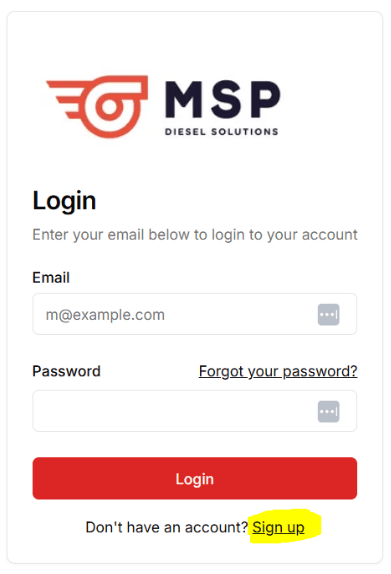
If you already have an account setup please login below:
LoginSystem Requirements
We recommend a stable internet connection and one of the following supported web browsers:
- Google Chrome
- Mozilla Firefox
- Microsoft Edge
Accessing the App: Visit warranty.mspdieselsolutions.com
Account Creation
- Click Sign Up on the login page or navigate to warranty.mspdieselsolutions.com/signup
- Fill out ALL input fields completely.
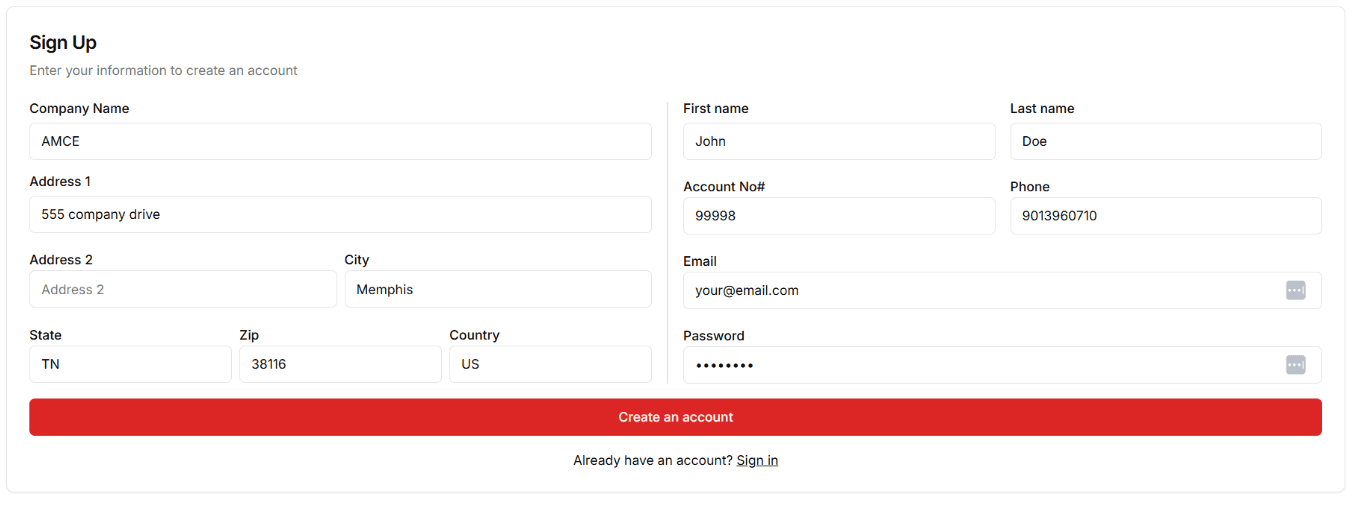
- If you don't know your account number, contact support at warranties@mspdieselsolutions.com.
Important Note: Your e-commerce account credentials cannot be used for this app
Email Verification Process
- After registration, you'll be redirected to an email verification page.
- Check your email inbox.
- Find the verification email.
- Click Confirm Email.
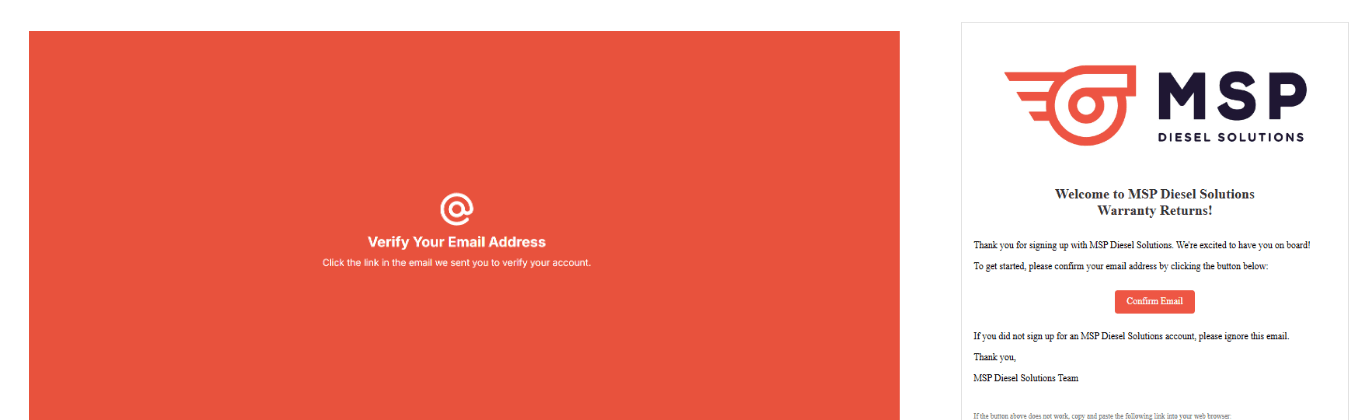
- You'll be redirected to the login page to access your new account.
Submitting Warranty Claims
Submitting and tracking warranty claims is now streamlined and user-friendly. You have two convenient search methods:
1. Search by Part Number
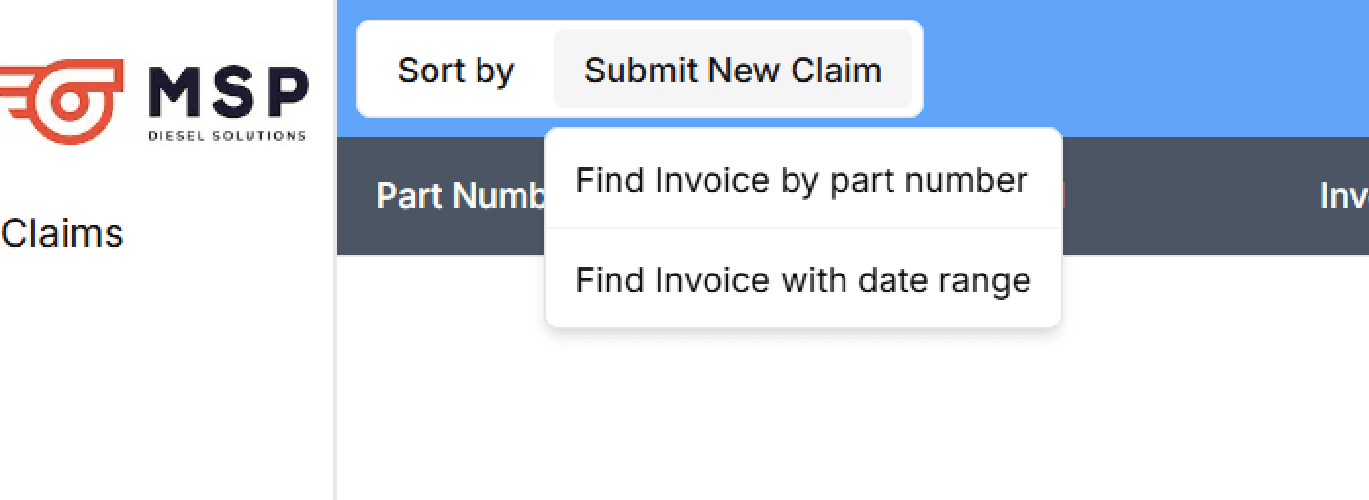
- Click Submit New Claim.
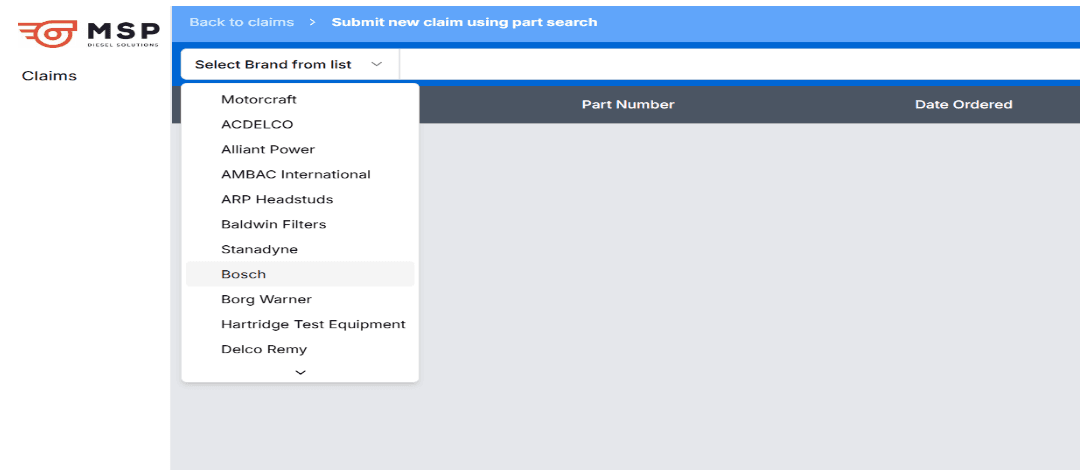
- Select the part's vendor (e.g., Bosch).
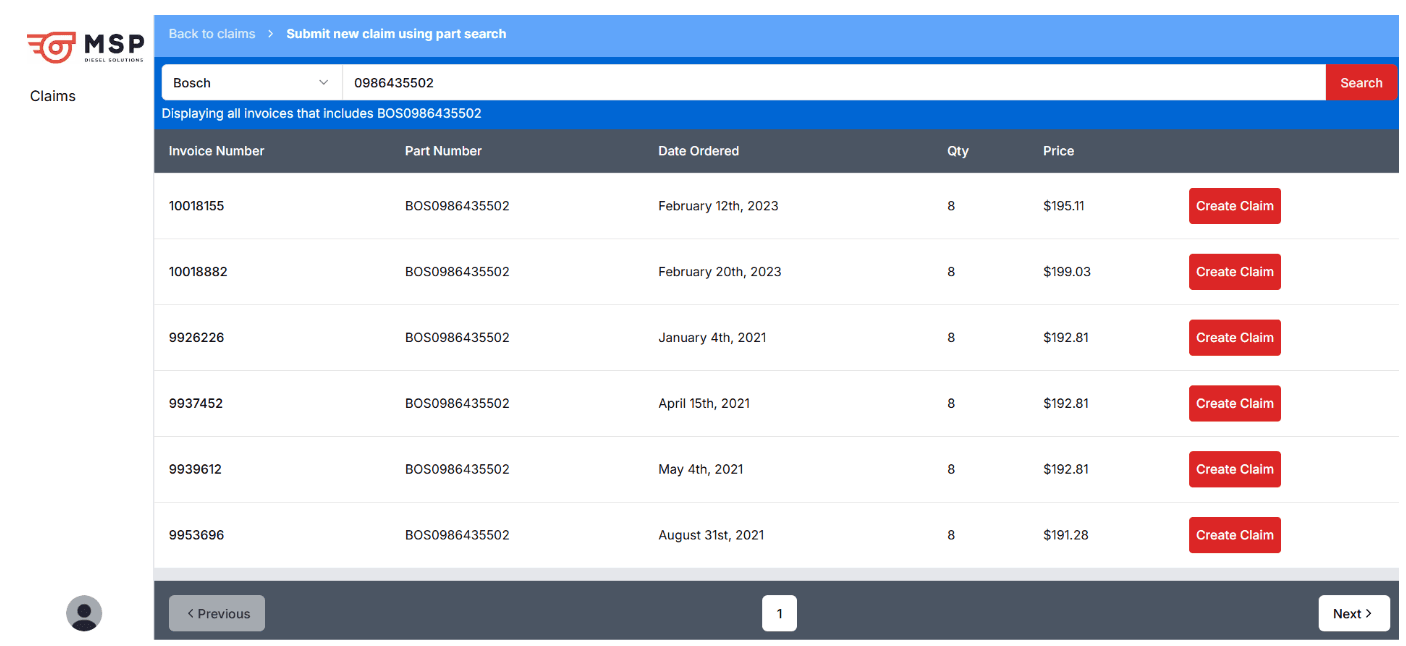
- Enter the base part number (e.g., 0986435502).
Important: MSP Diesel Solutions uses a 3-character prefix. For example, Bosch part 0986435502 becomes BOS09864355502. Only enter the base part number.
- Review search results, which include invoice details, cost, and purchase date.
- Click Create Claim for the desired invoice.
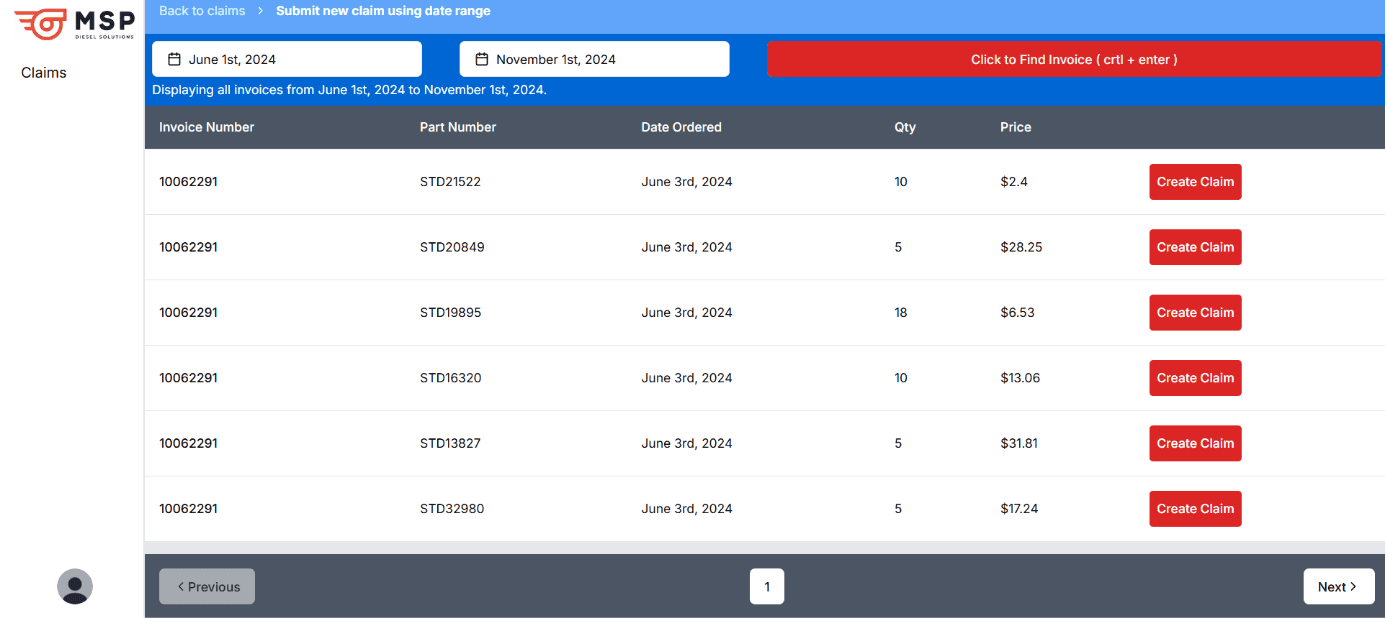
2. Search by Date Range
- Click Submit New Claim.
- Select Find Invoice with Date Range.
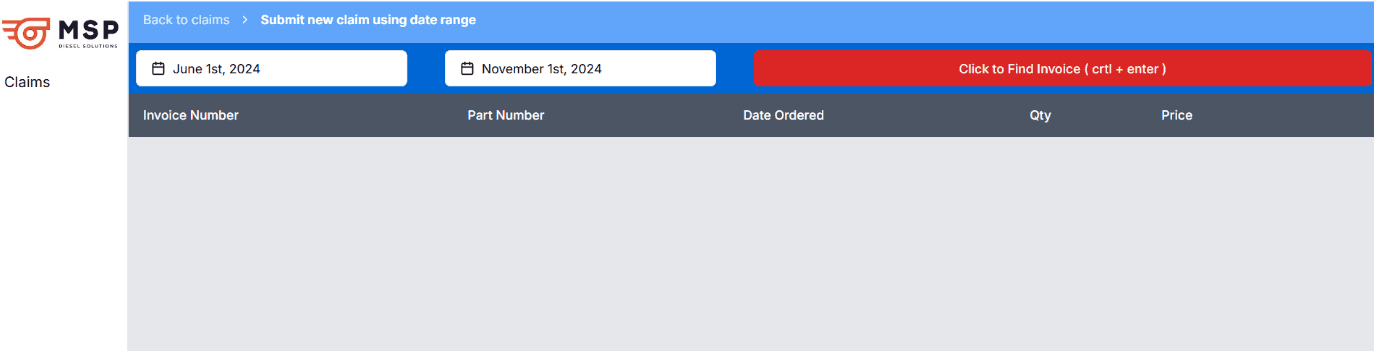
- Choose a "From" and "To" date.
- View all parts ordered within that period.
- Click Create Claim for the desired invoice.
Completing the Claim Form
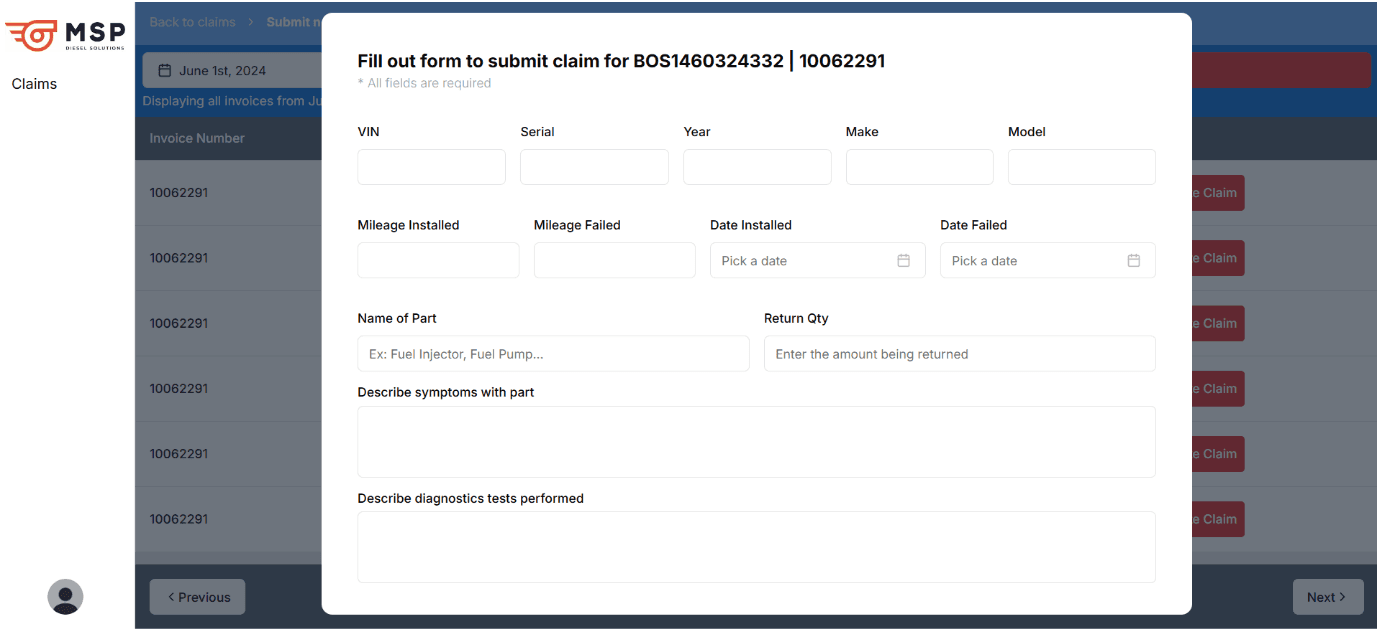
Important Form Guidelines:
- All input fields are REQUIRED.
- Special Labor Hours Rule:
- 0 hours: No additional description needed.
- greater than 0 hours: Detailed labor description MANDATORY.
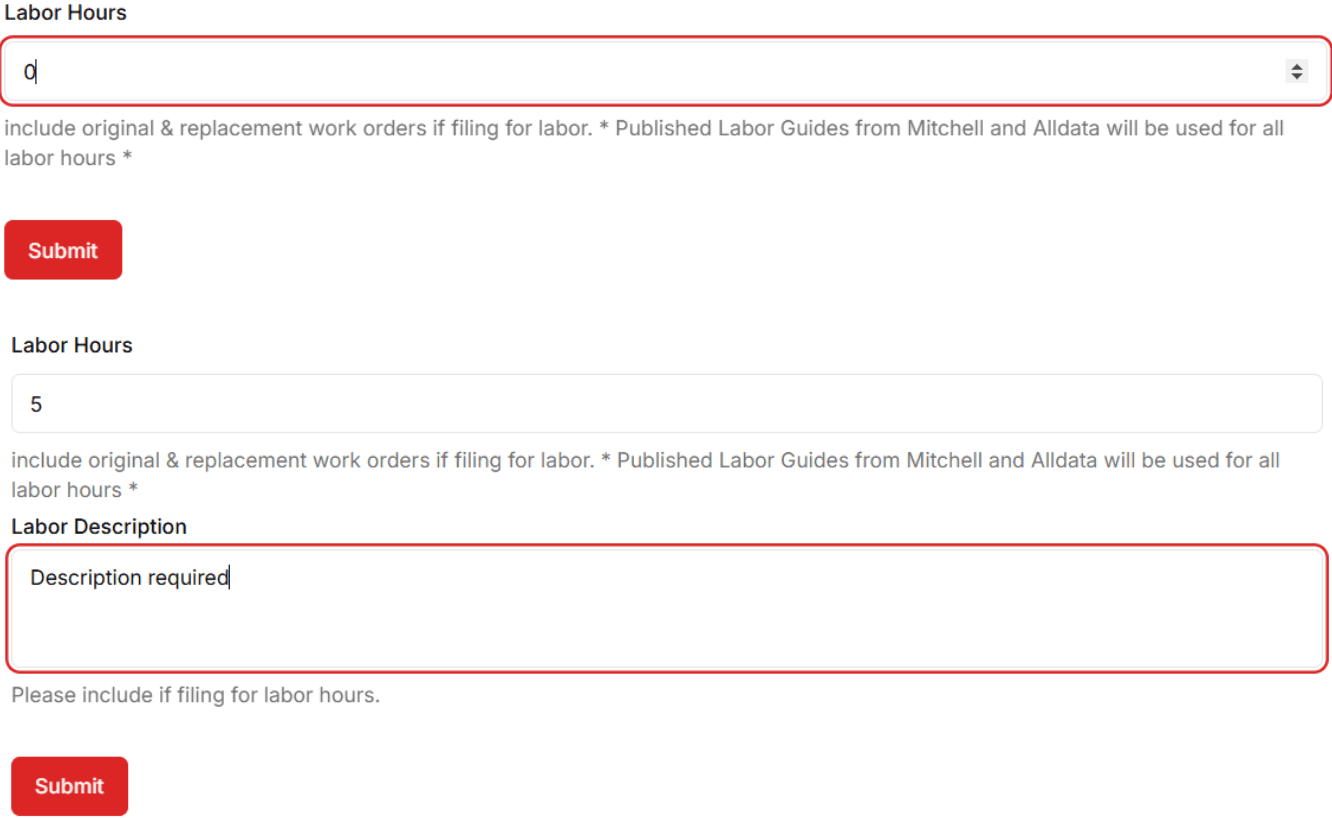
- Include original & replacement work orders if filing for labor.
- Published Labor Guides from Mitchell and Alldata will be used for all labor hours.
Managing Your Claims
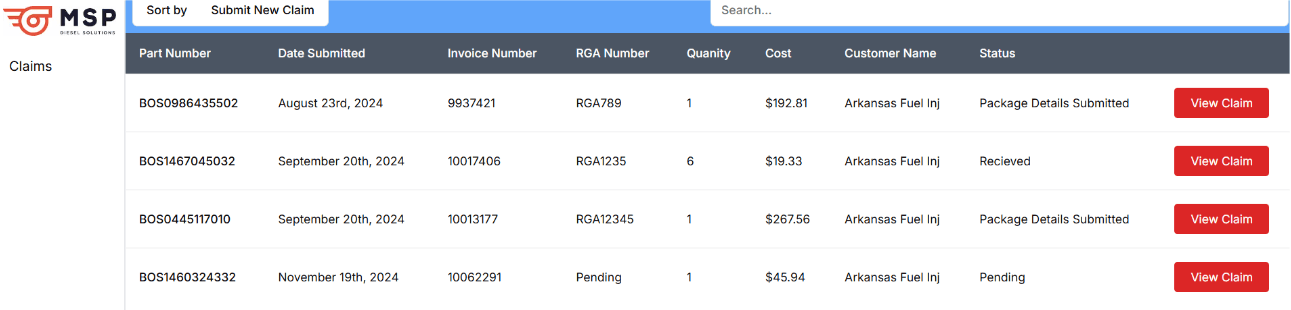
Accessing Claims
- Click Claims in the navigation menu.
- View all submitted warranty claims.
- Select View Claim to manage specific claim details.
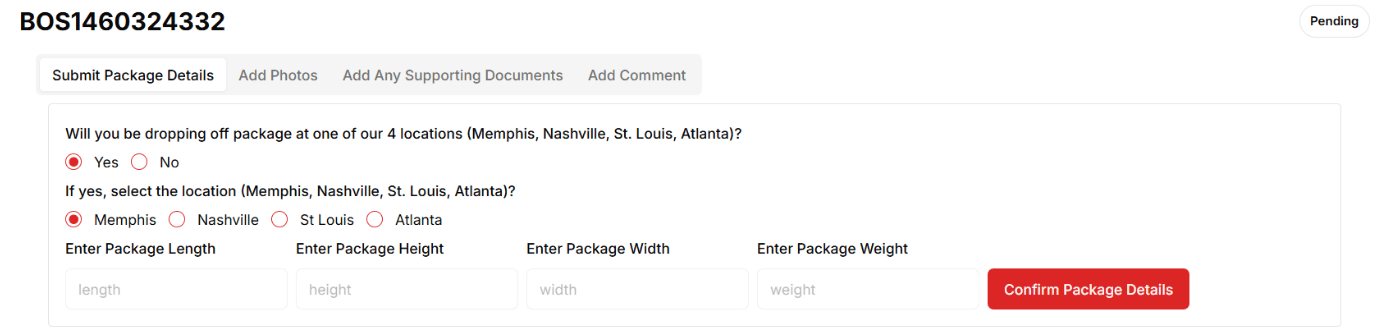
Package Details (First Critical Step)
You must specify a delivery method.
- Dropping off: Select one of our 4 locations (Memphis, Nashville, St. Louis, Atlanta).
- Shipping: Provide package dimensions (Length, Height, Width) and weight.
Additional Claim Management Features
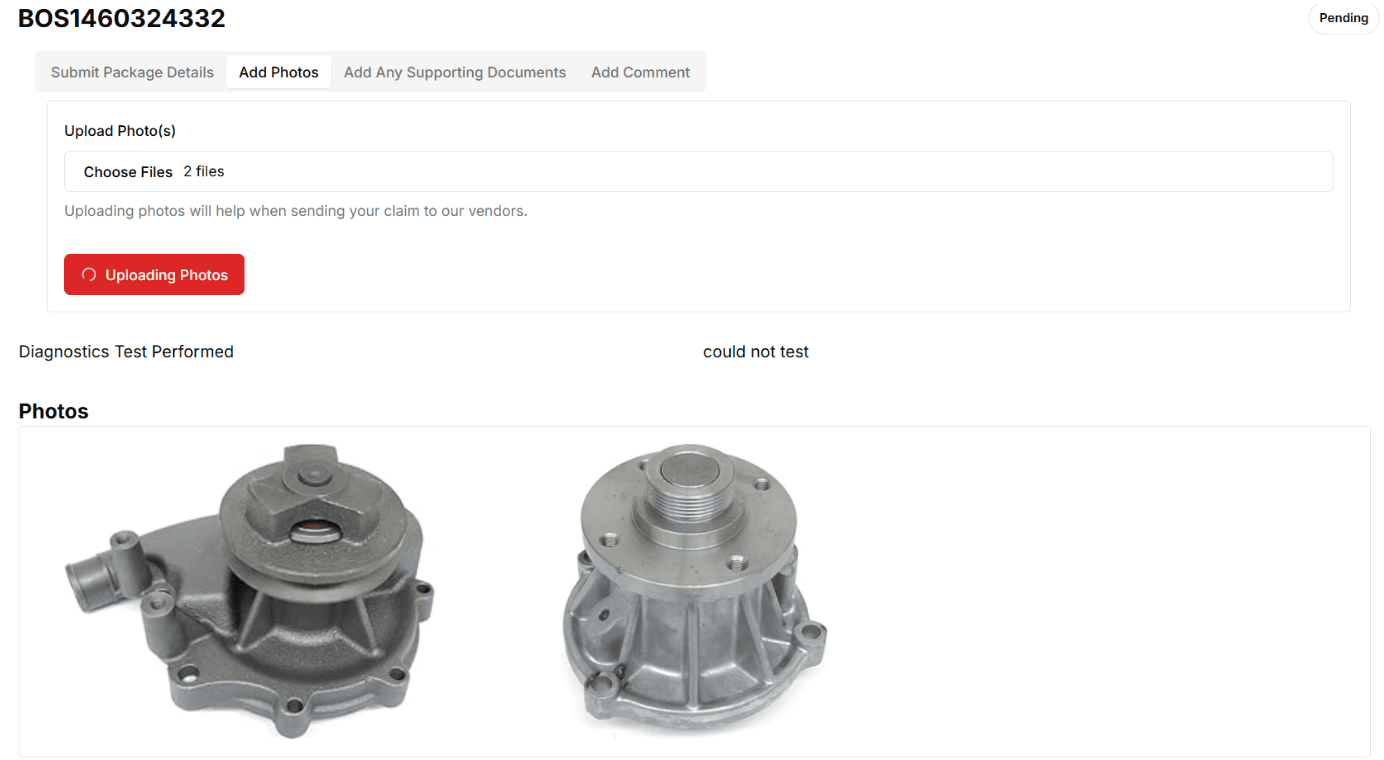
- Adding Photos: Upload photos (.jpg, .png) in bulk or individually to help when sending your claim to vendors.
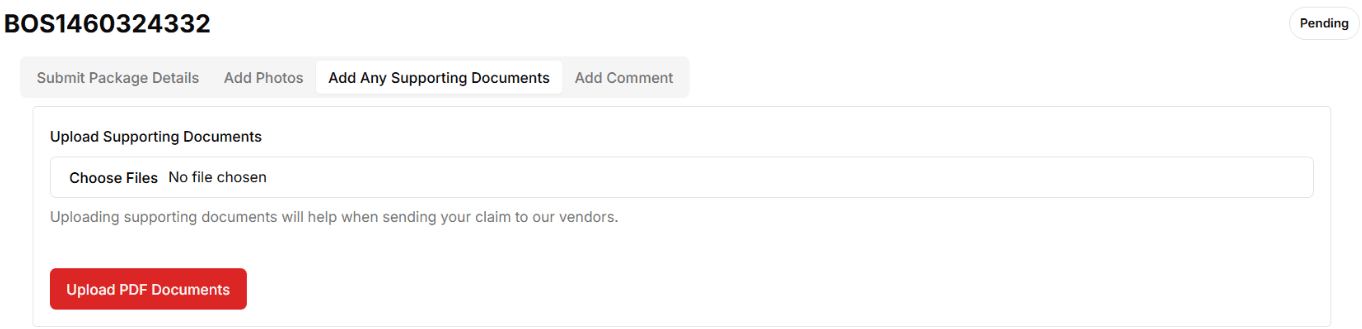
- Supporting Documents: Upload PDF documents to support your claim.
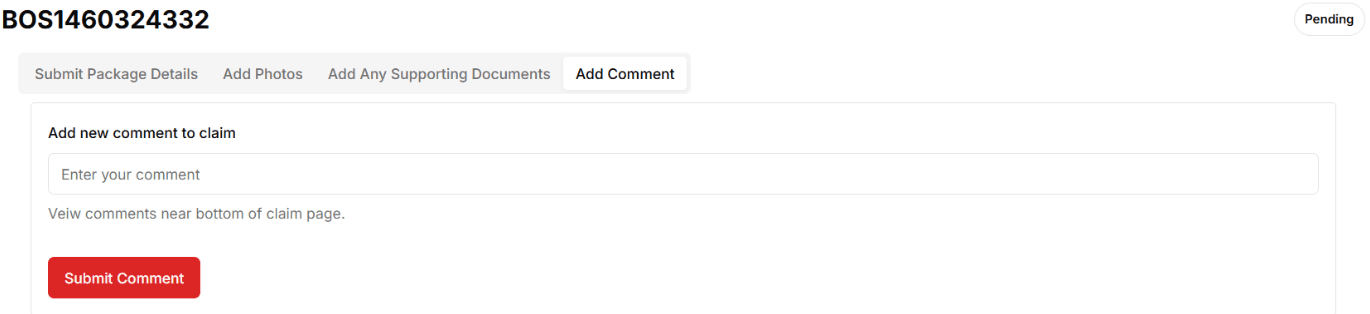
- Adding Comments: Add comments to provide additional context.
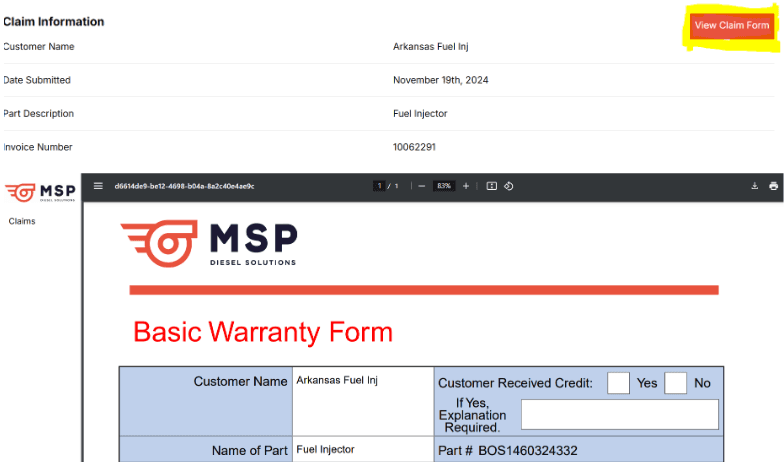
- Claim Form View: Generate a PDF representation of your claim by clicking on the View Claim Form.